Getting started
Team
Invite people to a website and control their access.
Team access is managed separately for each website. Shared websites appear directly in the invited user's dashboard, so there is no separate team-switching flow.
Invite someone
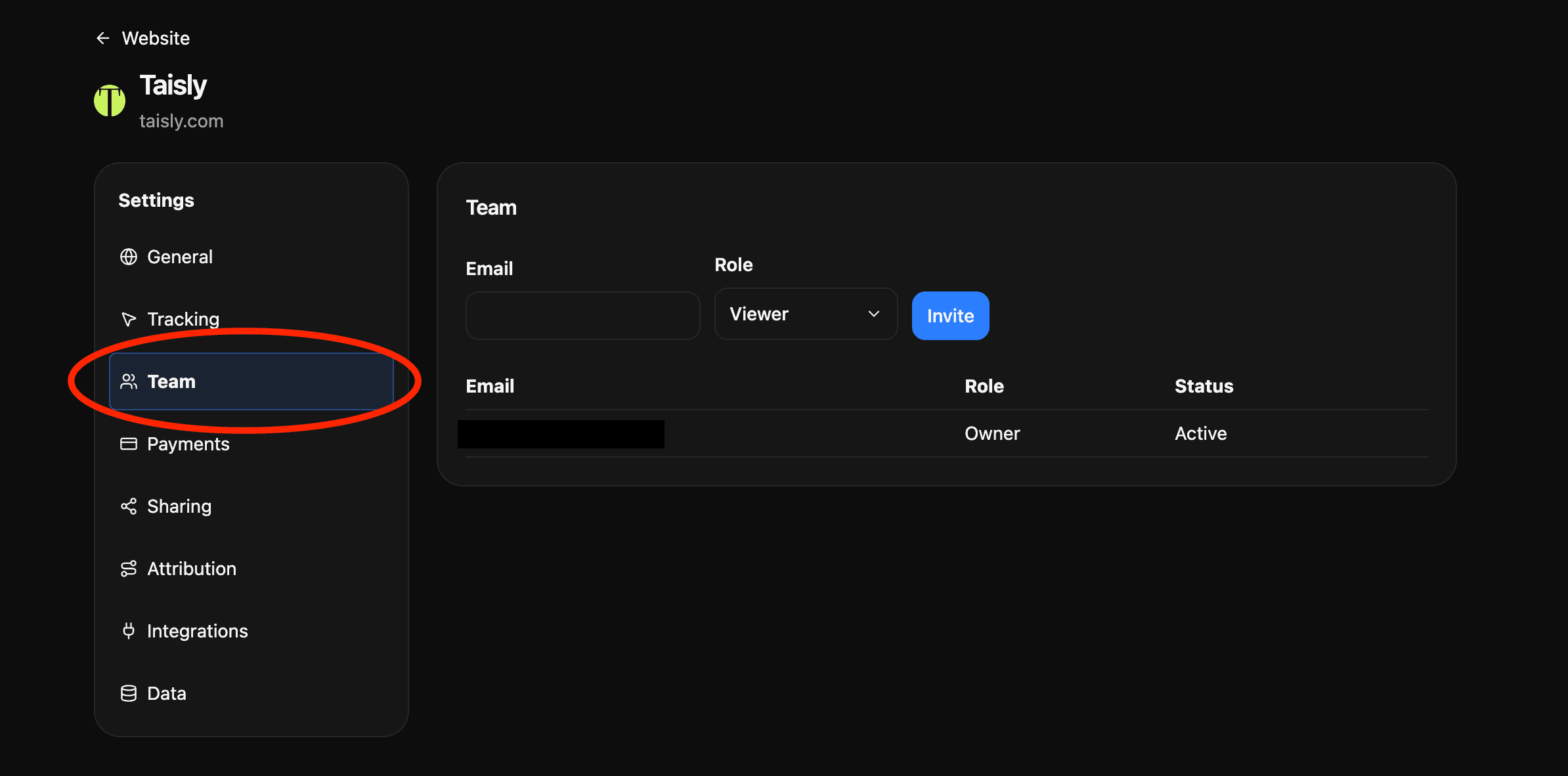
Open Settings -> Team, enter the email of a registered Talivia user, choose a role, and click Invite. The user should sign in with the same email address to see the website.
Roles
- Viewer has read-only access to dashboards, reports, and sessions.
- Member can also update website settings and integrations.
- Owner manages invitations and access, and can delete the website.
Manage access
The Team page shows the website owner and every invited user with their current role. The owner can change access or remove a user when it is no longer needed.
Review the list after contractor work, agency handoffs, or other temporary collaboration.