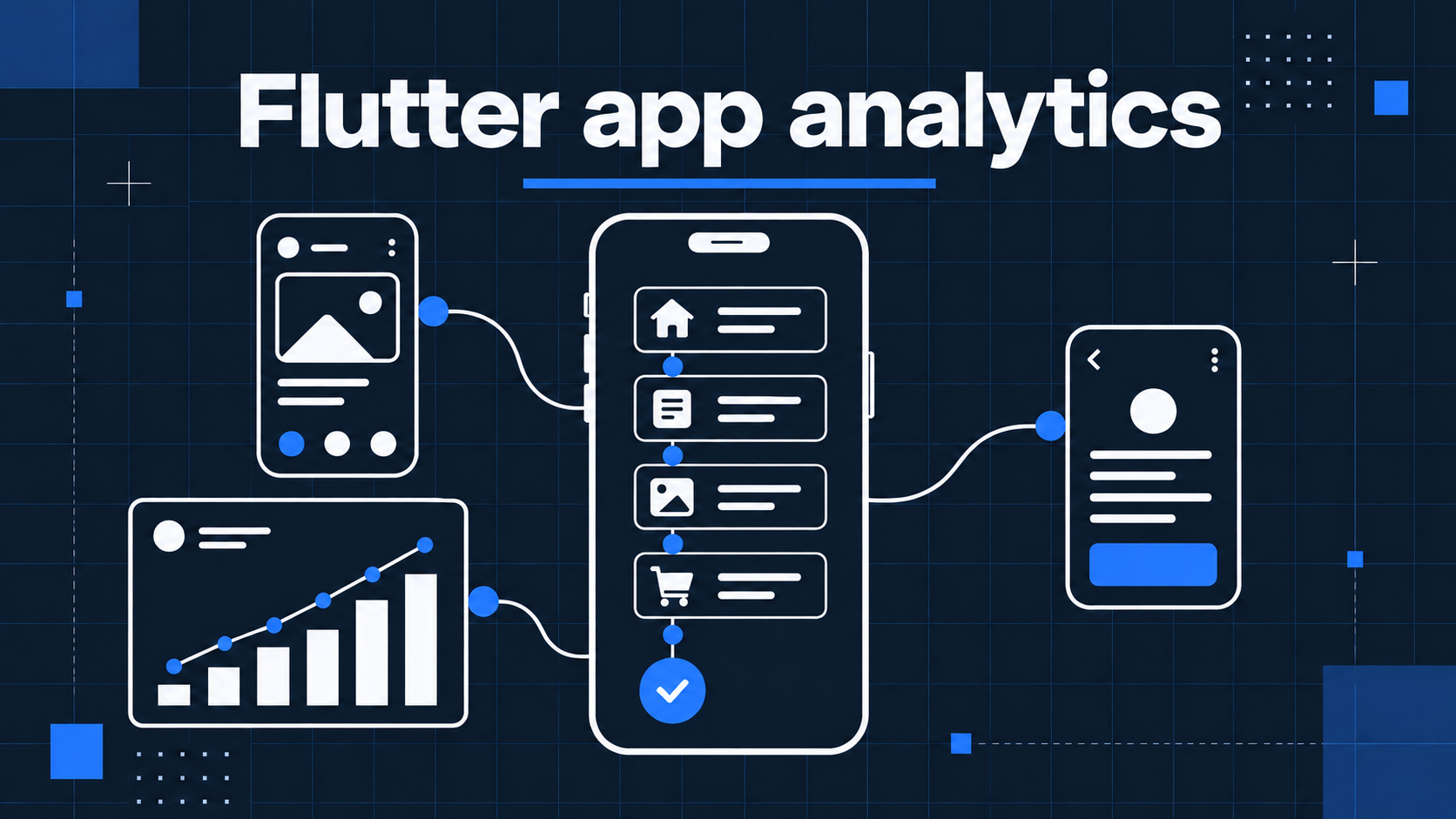
A Flutter app can share a codebase across iOS and Android, but the useful questions about its users are more specific. Which screens do people reach before they find value? Which onboarding step is completed, rather than merely opened? Do returning users use the feature the team built for them? Flutter app analytics should help answer those questions with evidence from the app's actual flow.
The Talivia Flutter SDK sends app screen views, product events, sessions, and known user identity to the same collector that receives website activity. When your app and website use the same Website ID and hostname, you can inspect both in one Talivia workspace. The app still needs explicit tracking calls, and mobile acquisition and payment truth require separate evidence. This guide covers the implementation choices that make those boundaries clear.
Start with an event plan your team can use
Choose a small number of questions before adding tracking code. For a subscription app, you may want to know whether a new user opens the onboarding flow, completes setup, uses the main feature, and returns in a later session. For a marketplace, you may care about a search, a listing view, a saved item, and a completed inquiry. Those are product decisions, not analytics-specific behaviors. Your event plan should describe them in terms the team already uses.
Separate screens, successful actions, and known identity. A screen view tells you the destination that became visible. A custom event tells you that a business milestone happened. An account ID tells you which signed-in customer the app already knows. Opening Checkout is different from a confirmed payment, just as tapping a create button is different from saving the object.
| Product question | Signal to record | Example |
|---|---|---|
| Did a person reach the core feature? | Screen view | Home, then Workspace |
| Did setup produce value? | Completed product event | first_workspace_created |
| Did the person return? | Later session and milestone | report_shared after reopening |
| Which account completed it? | Known identity after login | Stable internal account ID |
Keep a short event dictionary with the trigger, expected properties, and owner of each definition. Decide how duplicate taps, retries, and background completions affect the count. A stable event name should survive a redesign of the button or widget that starts the action. The general mobile app analytics guide explains how these signals fit together across platforms.
Install and configure the native Flutter package
The package is available as talivia_flutter for Flutter apps on iOS and Android. Add it and declare shared_preferences, which supplies the local state adapter used in the example:
flutter pub add talivia_flutter
flutter pub add shared_preferences
Configure the SDK with your Talivia Website ID, the website hostname used by your web tracker, the current native platform, and a SharedPreferences instance. Initialize analytics only when your app's consent and privacy settings permit collection. In an async setup function for a native app, the basic configuration is:
import 'dart:io';
import 'package:shared_preferences/shared_preferences.dart';
import 'package:talivia_flutter/talivia_flutter.dart';

Future<Talivia> createAnalytics() async {
  final preferences = await SharedPreferences.getInstance();
  return Talivia(
    websiteId: 'YOUR_WEBSITE_UUID',
    platform: Platform.isIOS ? 'ios' : 'android',
    hostname: 'your-site.com',
    preferences: preferences,
  );
}
Replace the placeholders with the ID and hostname from your own workspace. The hostname is a domain, without a scheme or path. The package sends to https://talivia.com by default, and no private API key belongs in the app. If you also ship a Flutter web target, plan its browser analytics separately; this SDK and its dart:io setup are for native iOS and Android. The Flutter setup documentation contains the current installation example.
Track visible screens through Navigator or Router
The SDK does not observe Flutter navigation automatically. Decide which changes in your Navigator, Router, or routing package represent a meaningful screen, then call screen() when the destination is actually visible:
await analytics.screen('Home');
await analytics.screen('Workspace/Detail');
This explicit call is useful because a dialog, nested route, tab, and full-screen page can mean different things in different products. A screen name should describe a durable destination. Avoid putting a person's email address, search query, or changing record ID into the path. Workspace/Detail lets the team compare activity across records without turning the screen dimension into a list of private or one-off values.
The SDK encodes the name as a mobile path and includes iOS or Android platform context. Those paths share Talivia's collector with website pageviews, but they describe app screens. Test your navigation callback so a rebuild, focus change, or nested state update does not produce duplicate screen views. Inspect a real test path in the session activity view to see whether the order matches what a user saw.
Record completed product actions, not optimistic taps
Use track() after the app confirms an outcome. For example, send signup_completed after the account was created, or first_workspace_created after the workspace exists on the server:
await analytics.track('signup_completed', {'method': 'email'});
await analytics.track('first_workspace_created', {'template': 'blank'});
If the request fails, a success event should not be emitted. If an operation completes in the background, record it at the point your app can confirm the result. This keeps analytics aligned with the business flow instead of making the business flow conform to an SDK. It also makes conversion reports more meaningful: a high tap rate with a low completion rate points to a different problem from low intent.
Choose event properties with care. A feature category or plan tier may help a team compare use; an access token, free-form user content, email address, or payment credential generally does not belong in a general event payload. Agree on a naming convention with website tracking if the same product outcome can happen on both surfaces. The event tracking guide covers how custom events are used in Talivia reports.
Link known accounts without inventing a merged funnel
After your authentication flow knows the customer, call identify() using a stable internal account ID. If the same customer signs in on your website, use the same ID there. On logout, call reset() to rotate the anonymous visitor and session identity before another person uses the device:
await analytics.identify(account.id);
// After logout succeeds:
await analytics.reset();
The package persists visitor, session, known user, and current screen state through SharedPreferences. A new session begins after 30 minutes of inactivity. That gives a useful frame for return visits, but it does not make a phone and browser the same anonymous visitor. Matching known account IDs create identity links; current funnels still group by visitor token rather than merging all pre-login app and web actions into one cross-device funnel.
This is especially important when you present conversion rates. A customer can browse on a laptop, install the app, and sign in on a phone. The account connection is useful context, while the acquisition path may still be incomplete. Label a report according to whether it counts visitors, sessions, known accounts, or successful actions. The mobile analytics documentation spells out how the shared workspace works today.
Understand offline and attribution boundaries
When a send fails because the network is unavailable, the Flutter SDK can retry on the next event or a call to flush(). The pending queue holds at most 100 events in memory. It is lost if the app process exits, so it cannot guarantee delivery across a long offline period. A server rejection can also remove an event from the queue. Before depending on offline reports, make a short test journey without connectivity, reconnect, flush, and compare what arrived with what you expected.
The SDK does not automatically capture app-store install attribution, deep-link campaigns, or ad-network conversion evidence. A web campaign parameter may explain a website visit, but it does not by itself establish the source of a later native install. If that attribution matters, integrate a suitable source of install or campaign data and define how it should connect to the app journey. Do not fill the gap with an assumed source label.
Likewise, a client event is not proof that money was collected. In-app purchases can fail verification, be delayed, or be refunded. A purchase_completed event emitted by a device can be repeated or forged. Record authoritative payment results through your backend or a supported provider integration, then use Talivia revenue attribution to inspect the evidence connecting confirmed revenue to eligible activity.
Validate a short journey before adding more events
Use a test account to open the app, reach Home, create one real object, sign in, log out, and return after the inactivity window. Confirm that the screen and event order is correct, each screen appears once, failed actions produce no success event, and the known account ID appears only after authentication. Repeat on both iOS and Android if the app ships on both. Check that the Website ID and hostname match the website configuration before investigating missing shared-workspace activity.
Then test airplane mode and recovery, and inspect the results in Talivia. Keep the first event plan small enough to audit manually. More instrumentation is valuable only when a report can still explain what each signal means and where it came from. For teams comparing frameworks, the React Native analytics guide illustrates the same measurement principles in another mobile stack.
Flutter app analytics works best when it follows your product's real outcomes. Navigation supplies screen views, completed operations supply events, authentication supplies known identity, and a trusted server supplies payment truth. Start with the Talivia Flutter overview, use the SDK installation guide, and expand only after one journey reads clearly from start to finish.