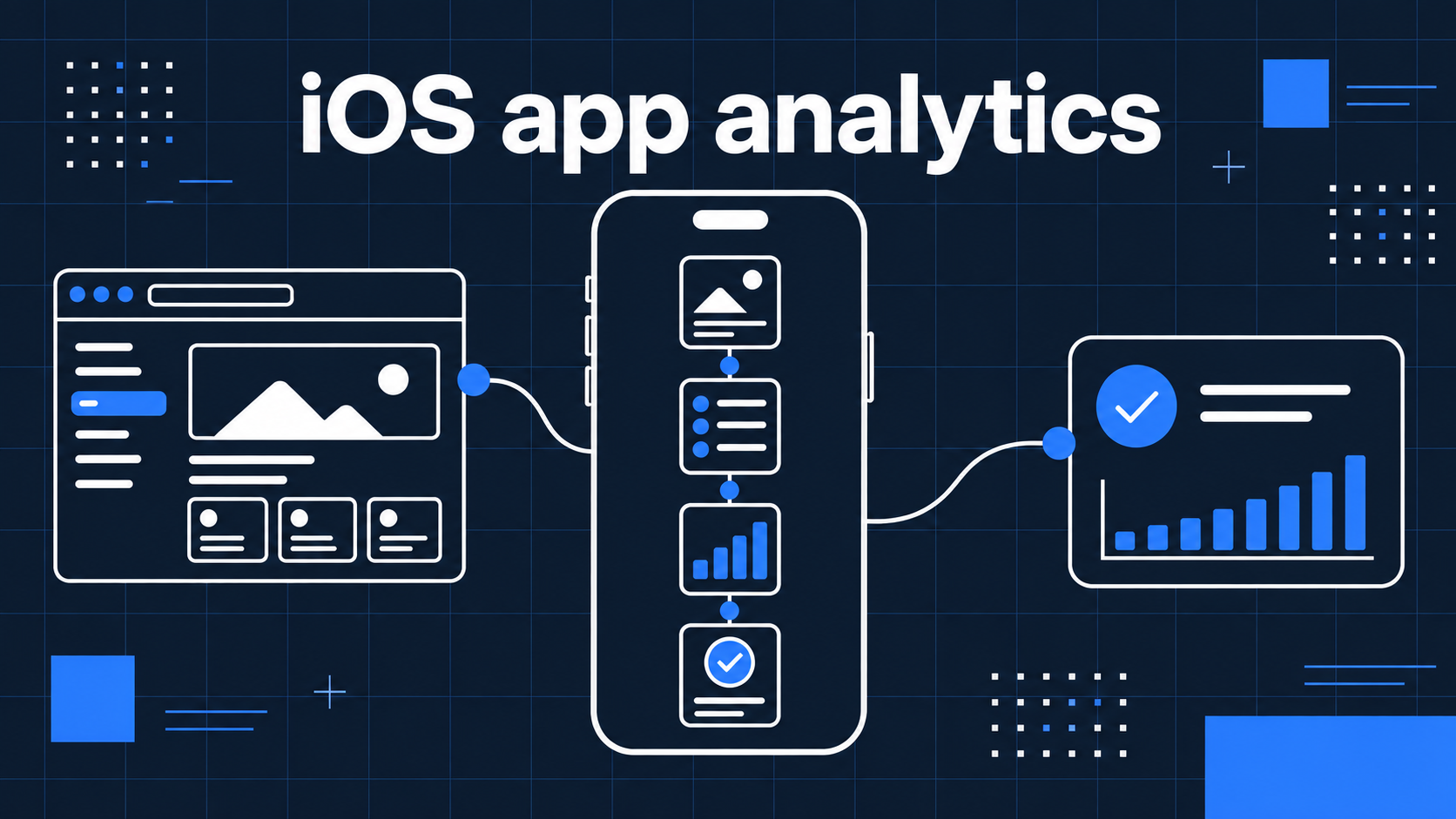
An App Store download tells you that somebody installed your iOS app. It does not tell you whether they reached the feature you built, completed onboarding, or returned with a reason to stay. A crash report can explain a failure, but it cannot describe a successful customer journey. Useful iOS app analytics begins with the screens people see and the business outcomes the app can actually confirm.
The Talivia Swift package records native iOS screens, custom events, sessions, and known user identity through Talivia's existing collector. If your website and app use the same Website ID and hostname, their activity can be viewed in one workspace. That shared view is valuable, but it does not make every browser and phone session one identity-merged funnel. This guide shows how to instrument a Swift app carefully and how to read the resulting data.
Define a journey before choosing events
Start with one question that affects a product decision. For an education app, you might ask whether a new learner completes the first lesson. For a finance app, the useful milestone might be connecting an account and viewing the first report. For a collaboration app, it could be creating a workspace and inviting a teammate. These outcomes belong to your product, not to an analytics vendor.
Separate three kinds of evidence. Screen views tell you where the user navigated. Product events tell you that an important action completed. Known identity tells you which account your authentication flow recognized. Do not infer a completed transaction from a checkout screen or a completed signup from a button tap. The app should emit a success event only after its own flow confirms success.
| Question | Signal | Example |
|---|---|---|
| Did people reach the main feature? | Screen view | Home, then Report |
| Did setup produce value? | Completed event | first_report_created |
| Did someone return? | Session plus later action | report_shared in a later visit |
| Which customer completed it? | Stable account ID after login | Your internal user ID |
Write down each event's exact trigger and allowed properties before shipping it. Include the behavior for retries and duplicate taps. Stable event names make a trend comparable even when your SwiftUI view hierarchy or UIKit controller names change. The mobile app analytics overview provides a broader measurement plan for mixed web and app products.
Add the versioned Swift package in Xcode
The Talivia source is available through Swift Package Manager from the public talivia-group/swift repository. In Xcode, add the package URL and select version 0.1.0:
https://github.com/talivia-group/swift.gitIf you manage dependencies in another Package.swift, add .package(url: "https://github.com/talivia-group/swift.git", from: "0.1.0") and depend on the Talivia library product. This is a versioned Git package, not an App Store app or an npm package. The Swift installation documentation keeps the current dependency and code examples together.
Create the client with the Website ID from your Talivia workspace and the domain used by your website tracker. The hostname is a domain, without https:// or a path. The SDK defaults to the Talivia Cloud collector and requires no private API key in your app:
import Talivia

let analytics = try Talivia(
    websiteId: "YOUR_WEBSITE_UUID",
    hostname: "your-site.com"
)
The client is isolated to the main actor. Create and call it from an appropriate main-actor context in your app. Initialize tracking only when the user's privacy and consent choices allow collection. The package supports native iOS, with iOS 15 as its declared minimum. If your product also has a website, use the browser tracker there; the native package is for app activity.
Record visible screens in SwiftUI or UIKit
The SDK cannot decide which navigation changes count as meaningful screens in your product. Call screen() when a destination becomes visible in a SwiftUI navigation flow or a UIKit controller transition:
try await analytics.screen("Home")
try await analytics.screen("Report/Detail")
A tab change, modal, or nested route may deserve a screen view in one app and not in another. Make that decision explicitly. Use stable screen names rather than a raw customer ID, email address, search query, or other changing private value. A template like Report/Detail lets your team compare journeys across reports without making every report a separate page in analytics.
Talivia sends those native screens as app paths with iOS context. They share the collector with website pageviews but still represent app navigation. Test where you place the call: a SwiftUI onAppear or UIKit lifecycle callback can run more than once during a single perceived transition. Confirm that one visible destination produces one intended screen view. The session activity view is useful for checking the order against a real device session.
Track outcomes after the app confirms them
Call track() at the moment your business flow knows an operation succeeded. You can attach a small set of useful properties using the package's JSONValue types:
try await analytics.track(
    "onboarding_completed",
    data: ["path": .string("guided")]
)
try await analytics.track("first_report_created")
If the network request that creates a report fails, do not emit first_report_created. If a purchase or account change is still pending confirmation, do not mark it complete early. This distinction lets a team tell low intent from failed execution. A high rate of checkout openings with few confirmed outcomes suggests a different investigation from a low rate of checkout openings.
Keep event names short and durable, and restrict properties to what a real decision requires. Plan names or feature categories can be useful. Access tokens, email addresses, payment credentials, and free-form private text generally should not be copied into event payloads. If your website records the same milestone, agree on one business name across surfaces. See the event tracking documentation for how named events fit beside screen and session activity.
Connect known users without overstating identity
After your authentication flow confirms the account, call identify() with a stable internal ID. Use the same ID in website tracking when the customer uses both surfaces. On logout, call reset() so the next person using a shared phone begins with a new anonymous visitor and session:
try await analytics.identify(account.id)
// After logout succeeds:
analytics.reset()
The SDK persists visitor, session, current screen, and known user state through UserDefaults. A session rotates after 30 minutes of inactivity. That is useful context for repeat use, but it does not imply that all activity from one account is a single continuous journey across devices. Talivia can link known customer identity records when IDs match; current funnel reports still group by visitor token. A website visitor and an iPhone visitor are not automatically merged into one cross-device funnel after login.
State the unit of analysis on every report. A session count, unique visitor count, known account count, and completed action count answer different questions. The mobile analytics documentation explains the shared workspace and its current identity boundary. Keeping that boundary visible prevents a product team from reading a convenient but unsupported story into the data.
Treat offline delivery and acquisition as separate work
The Swift SDK can retry a failed network send on a later event or an explicit flush() call. Its pending queue holds at most 100 messages in memory. If the app process exits, those unsent messages are lost. A permanent server rejection may also drop a message. It is therefore unsuitable as a guaranteed offline event store. Test a short journey in airplane mode, reconnect, flush, and verify what actually arrived before using those reports for decisions.
An install source also requires evidence outside ordinary app screen tracking. The package does not automatically collect App Store install attribution, deep-link campaign history, or ad-network conversion data. A website campaign parameter can describe the browser visit that carried it, but it cannot prove the source of a later native install. Add a trusted attribution integration if your business needs that claim, and document how its identifiers join to app activity.
Payment truth belongs on a trusted server. A client purchase_completed event or a success view cannot establish that StoreKit or another provider collected and retained money. Purchases can be unverified, delayed, refunded, repeated, or spoofed. Send authoritative payment results from your backend or a supported provider integration, then use revenue attribution to inspect the evidence that connects confirmed money to eligible product activity.
Verify the first journey on a device
Use a test account and an expected path: open the app, reach Home, complete one valuable action, sign in, log out, and return after the inactivity window. Inspect the sequence in Talivia. Each intended screen should appear once, failed actions should not produce success events, and the known ID should appear only after authentication. Check the iOS context and the configured Website ID and hostname.
Repeat the test with connectivity disabled and restored. Confirm which messages reach Talivia, remembering that a successful HTTP response alone is not proof a report has stored the event if collection rules intentionally discard it. The package's current release has unit coverage, while full device-level validation remains a separate release gate. Verify your own app integration on a real device before treating the setup as complete.
iOS app analytics is most useful when the app reports what it actually knows: visible screens, completed product milestones, and authenticated identity. A trusted server should report payment facts, and any install attribution should come from its own evidence. Start with the Talivia iOS analytics page, follow the Swift package guide, and expand the event plan only after the first journey is clear and repeatable.